

Help with Newt
Birth Details
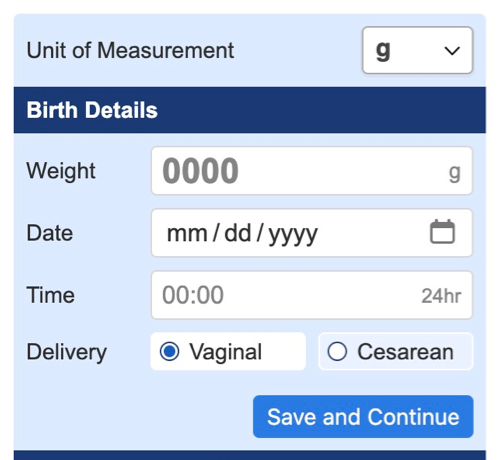
To get started, Newt requires a birth measurement. A weight (in grams/kilograms or pounds and ounces), date and time (24-hour format – 00:00) should be added under "Birth Details" along with selecting a delivery method (vaginal or Cesarean). Weight loss percentiles are different for vaginal and Cesarean-delivered newborns. Press "Save and Continue" to move to the next step. This data can be adjusted at any time.
Feeding Method
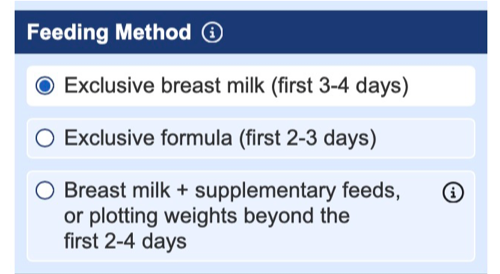
Next, Newt requires selecting a feeding method. By default, "Exclusive breast milk" is selected. Weight loss percentiles are different depending on feeding method. This setting can be adjusted at any time.
For those getting exclusive breast milk, the first selection can be used for the first 3 days (72 hours) following a vaginal delivery and the first 4 days (96 hours) following a Cesarean delivery.
For those getting exclusive formula (or donor human milk), the second option can be used for the first 2 days (48 hours) following a vaginal delivery and the first 3 days (72 hours) following a Cesarean delivery.
Beyond the above timepoints, the third selection should be used regardless of feeding method. Because the data set beyond these time points used weights from the outpatient setting, exclusivity could not be guaranteed. Therefore, the third option should be used for newborns that are getting breast milk plus supplementary feeds and for those outside the times described above.
Measurements
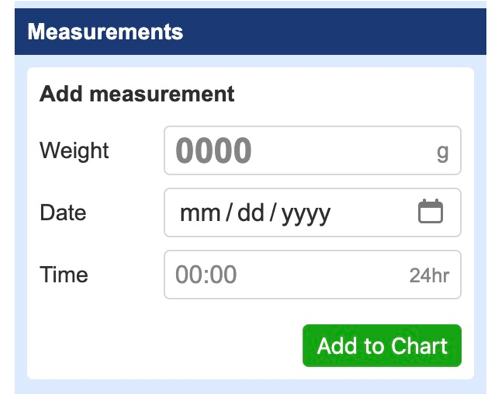
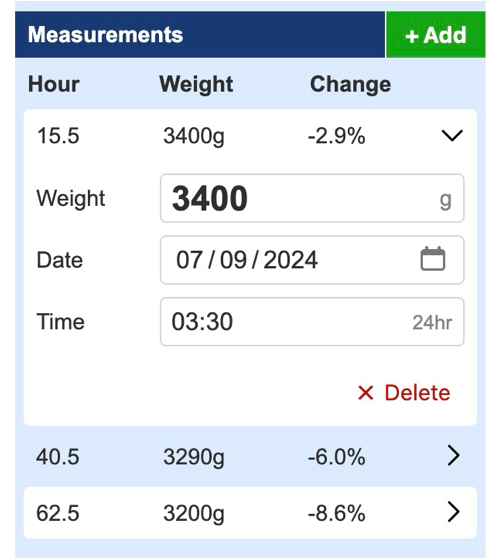
Finally, measurements are required, which will be displayed as points on the graph. Measurements follow the same formatting requirements as birth details. After adding the first measurement, additional measurements can be added by clicking/tapping the green "+Add" button. Measurements can be edited or deleted at any time – click/tap an existing measurement to edit.
 |  |
Date and Time Formatting
Time must always use 24-hour formatting, where 00:00 represents midnight (12:00 am) and the greatest possible value is 23:59 (11:59 pm). Invalid dates and times will not be accepted and will result in an error message.
Unit of Measurement
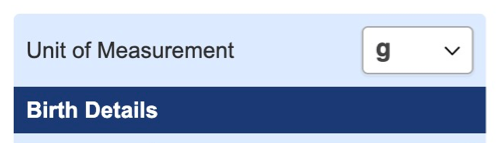
You can change the unit of measurement at any time using the unit of measurement selection menu. Note: converting existing values may affect precision.
Point Labels
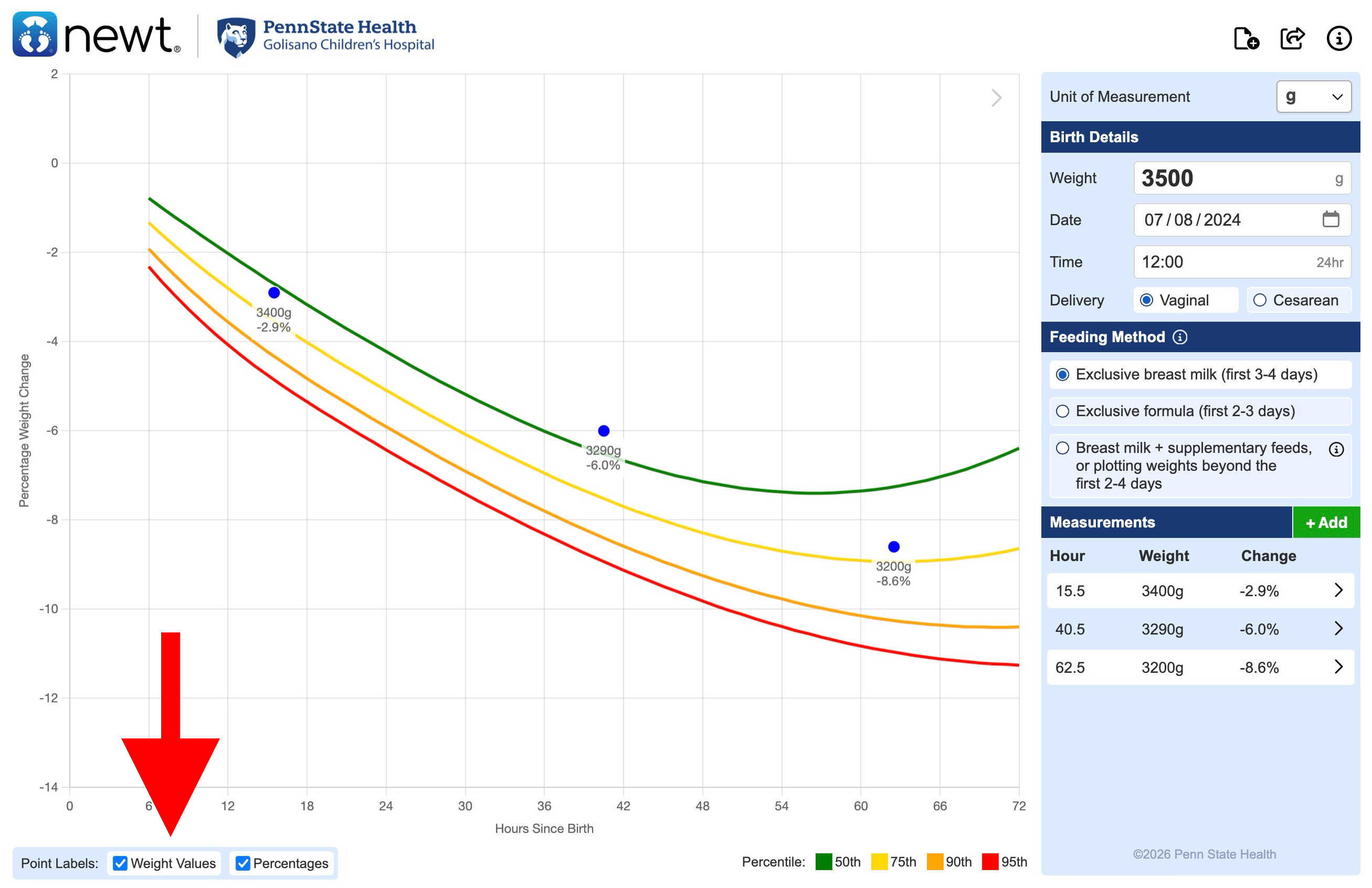
Below the chart are options to display labels next to the chart measurement dots. You may choose to display the weight values and/or percentage weight loss values on the chart. These can be enabled or disabled at any time. On mobile devices, you will find these options under "Chart Options."
Expand The Graph
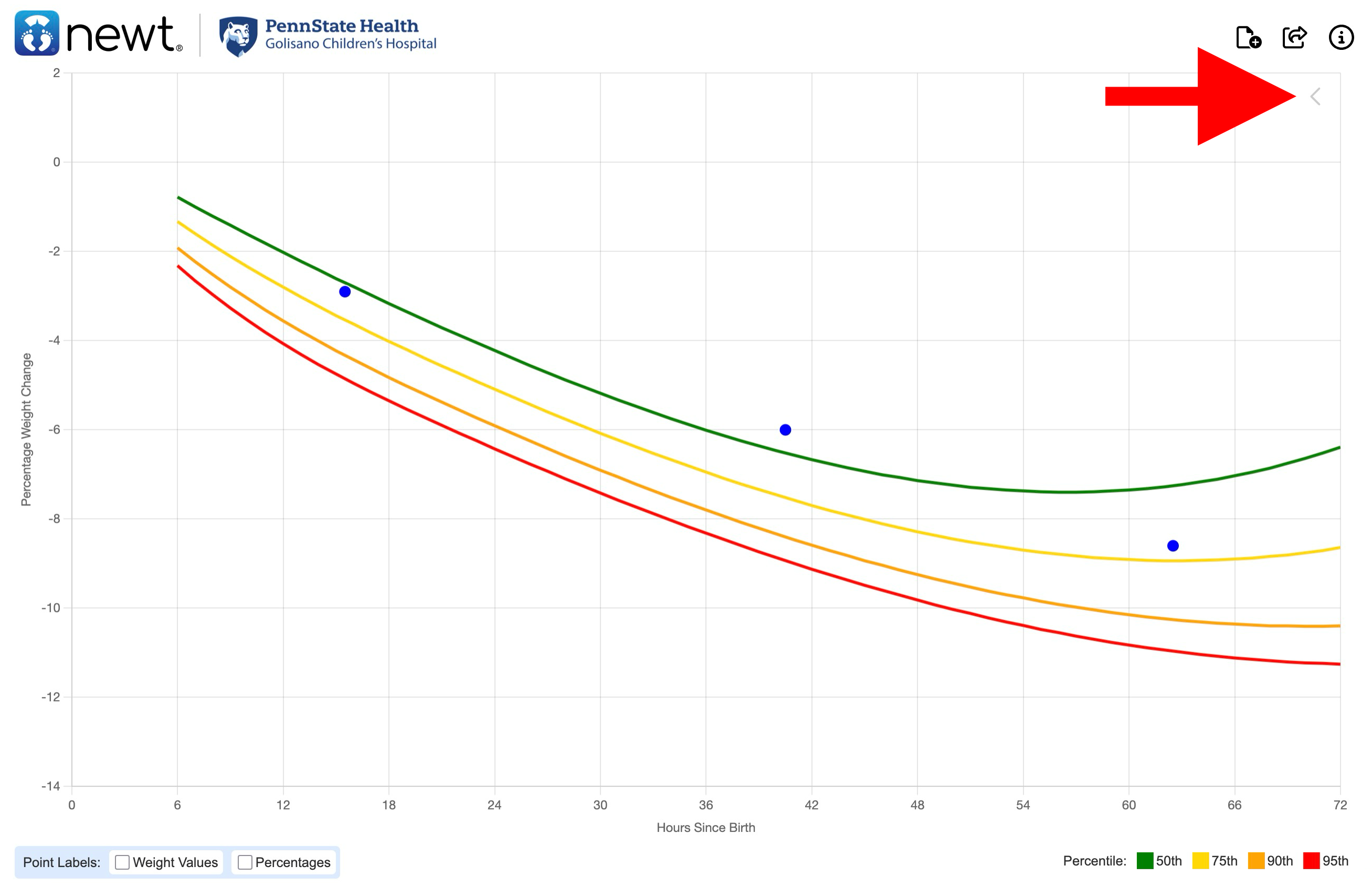
Click the arrow icon in the upper right corner of the graph to expand the viewable area of the graph. Tap it again to reveal the measurement data and settings.
Save or Share The Graph
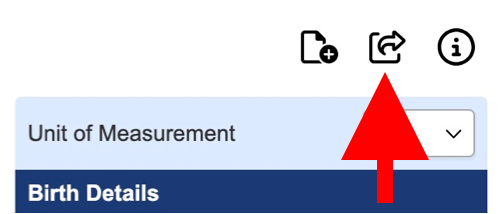
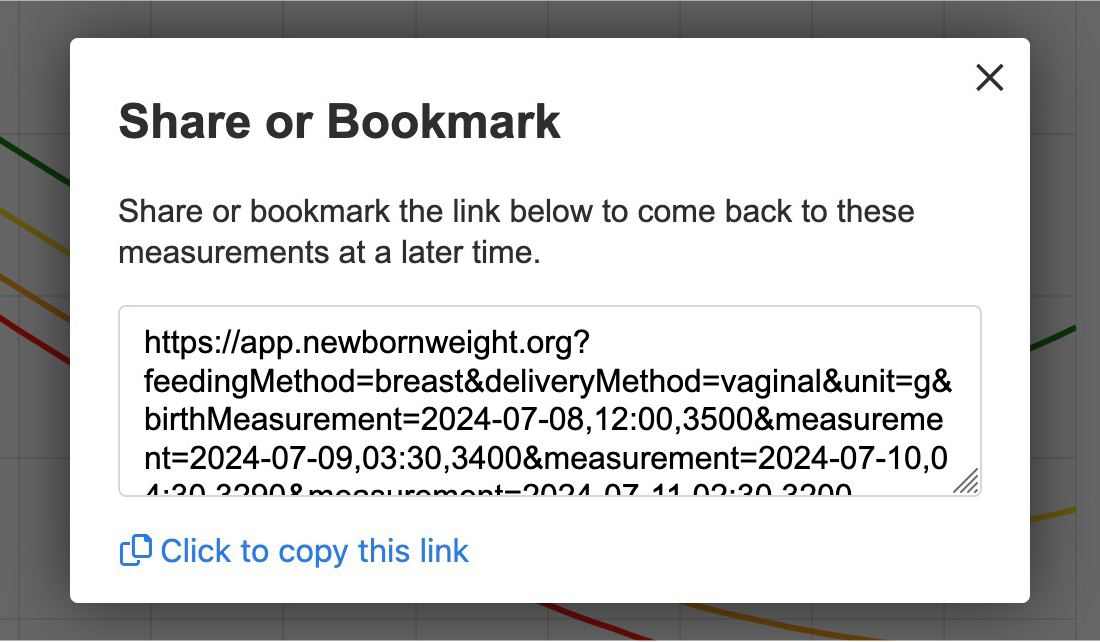
Use the "share" icon (box with arrow) in the upper right to reveal a link that can be shared or saved to revisit the graph at a later time. A link will not be available until a birth measurement has been provided.
Start Over
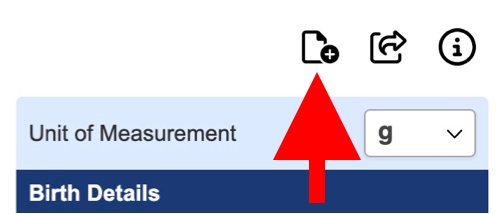
Use the "new" icon (document with plus symbol) in the upper right to start over. This will delete all measurement data from the application so that you can start over.